Location in Panel:
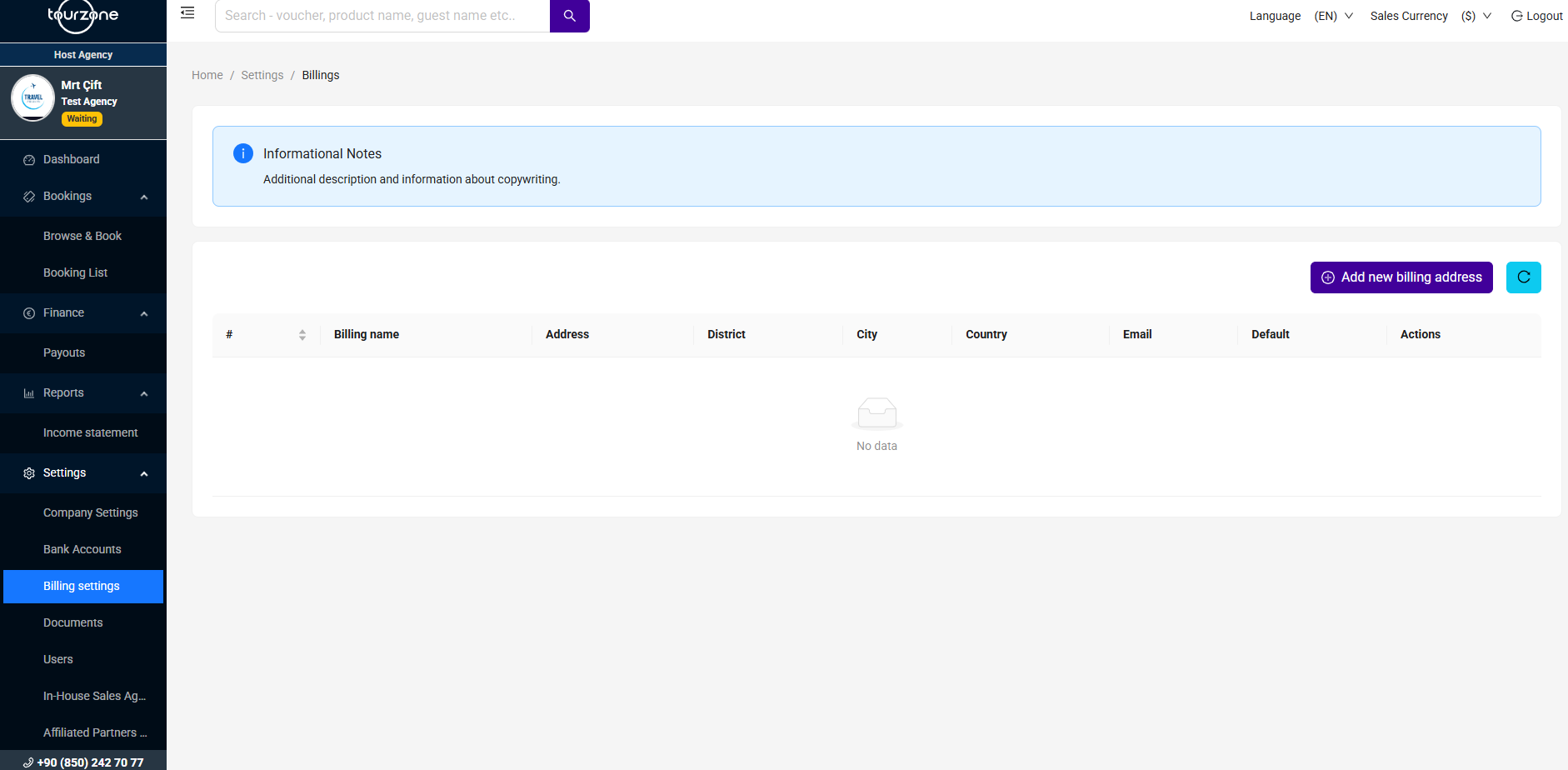
Settings > Billing Settings
The Billing Settings section allows you to add, manage, and edit the billing addresses that will appear on your official invoices. You can add multiple billing records and select one as your default billing address for all invoicing purposes.
How to Add a New Billing Address:
Go to Settings > Billing Settings
Click the “Add new billing address” button (top right)
Fill in the following fields:
Billing Name – Name to appear on the invoice
Address – Full street address
District – Local administrative area or district
City – City or town
Country – Country of the billing entity
Email – Contact email for billing
(Optional) Set as Default – Mark this address as your default billing record
Click Save to confirm
Once saved, the address will appear in the list and be used automatically for future invoices if set as default.
How to Edit or Delete a Billing Address:
Each billing address entry has an Actions button (right side).
Click Edit to modify the billing information.
Click Delete to remove the billing record (only if not in use on past invoices).
Note: You must always have at least one valid billing address in the system.
Best Practices:
Always provide accurate legal billing information that matches your registered company.
Use a corporate billing email that your finance/accounting team monitors regularly.
Set a default billing address if you operate with multiple legal entities.
Was this article helpful?
That’s Great!
Thank you for your feedback
Sorry! We couldn't be helpful
Thank you for your feedback
Feedback sent
We appreciate your effort and will try to fix the article