How to Set Your Billing Address
Location: Settings > Billing settings
Your billing address is used on invoices and payout-related documentation. You can add multiple billing profiles (e.g., main office, branch offices) and designate one as your default billing address.
Step-by-Step: Adding a New Billing Address
Navigate to the Billing settings page from the left menu:
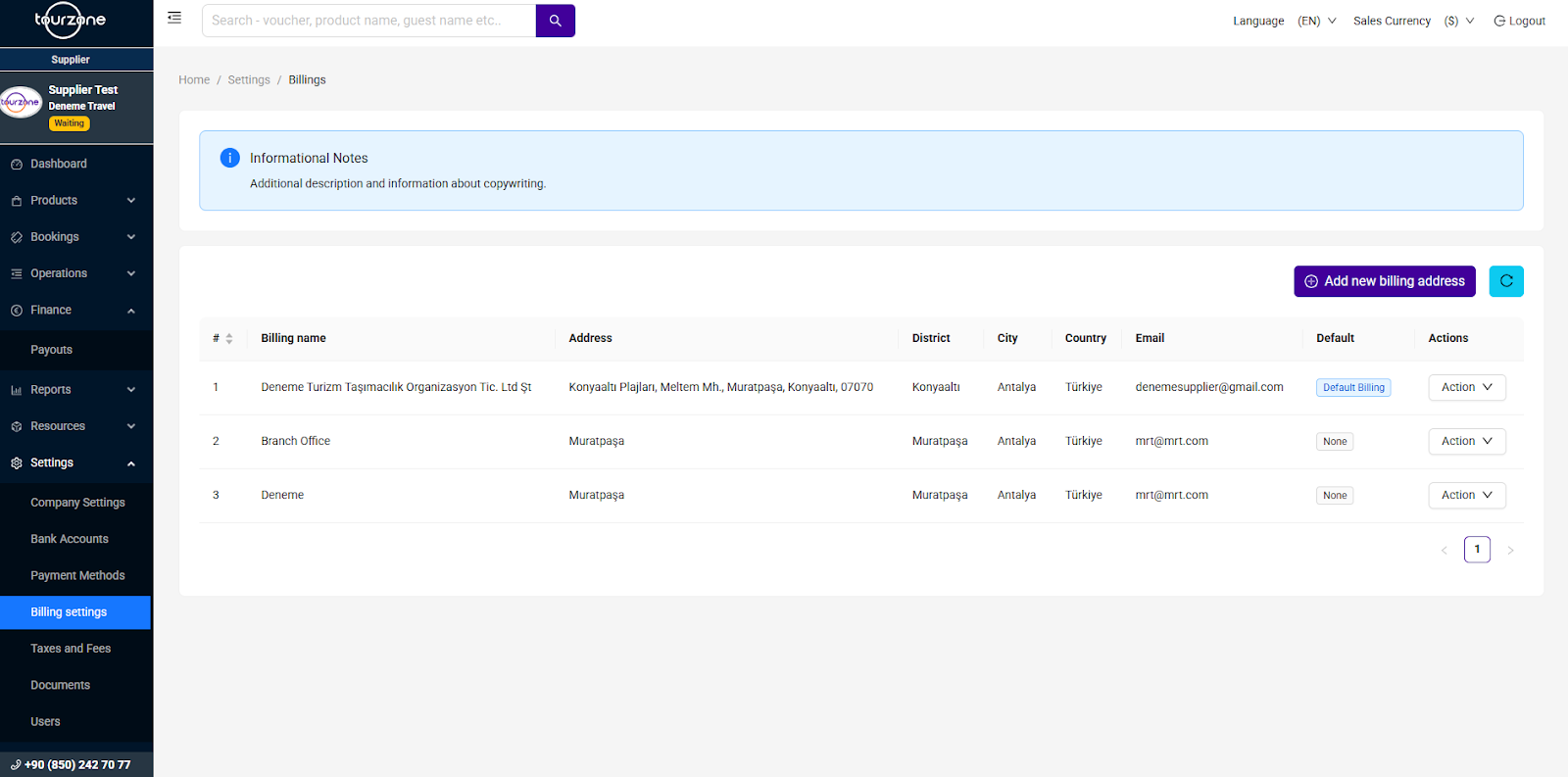
Settings > Billing settingsClick the “Add new billing address” button on the top-right.
Fill in the required fields in the form:
Billing Name – Your registered company or branch name
Address – Full street address
District – District or neighborhood
City – City where the billing entity is located
Country – Country of the billing entity
Email – Contact email for billing communications
Click Save to create the billing address entry.
Once added, it will appear in your billing list.
Managing Multiple Billing Addresses
Your company may have different billing profiles (e.g., main office, local branches). All added entries will be displayed in a table showing:
This helps you keep multiple options ready for invoicing and reports.
Setting the Default Billing Address
Only one billing address can be used as the Default Billing. This address will appear on your invoices by default.
To assign:
Click the Action dropdown next to the desired address
Select Set as Default
It will then be labeled with a Default Billing tag in the table.
You can change your default billing address at any time.
Actions for Existing Addresses
Each entry has an Action menu with the following options:
Edit – Update billing details
Delete – Remove the address (not available if set as default)
Set as Default – Mark as the primary billing address
Be careful when deleting entries. You must always have one valid billing address set as default.
Best Practice Tips
Use your full legal company name for tax compliance
Enter complete and correct addresses for accurate invoicing
Keep at least one billing address for each country you operate in
Was this article helpful?
That’s Great!
Thank you for your feedback
Sorry! We couldn't be helpful
Thank you for your feedback
Feedback sent
We appreciate your effort and will try to fix the article