Where to find it: Products > Experiences > List > Select Action > Edit / Duplicate
Edit a Product
You can edit a product at any time only if it has no active bookings and is temporarily deactivated (status: not active).
To edit a product:
Go to Products > Experiences
Click on Select Action next to the desired tour
Choose Edit
If the product is active and already has bookings, editing some core details (such as price or structure) can affect existing reservations. Please deactivate it first and ensure there are no future guests.
Duplicate a Product
You can easily clone an existing tour using the "Duplicate" option under the same Select Action menu.
This is useful if:
You want to offer a similar experience with slight differences (language, meeting point, or pricing)
You want to create seasonal versions (e.g. Winter vs. Summer)
The duplicated tour will appear in your product list with its own code and status: Processing.
How to Archive, Deactivate, or Delete a Product
Where to find it:
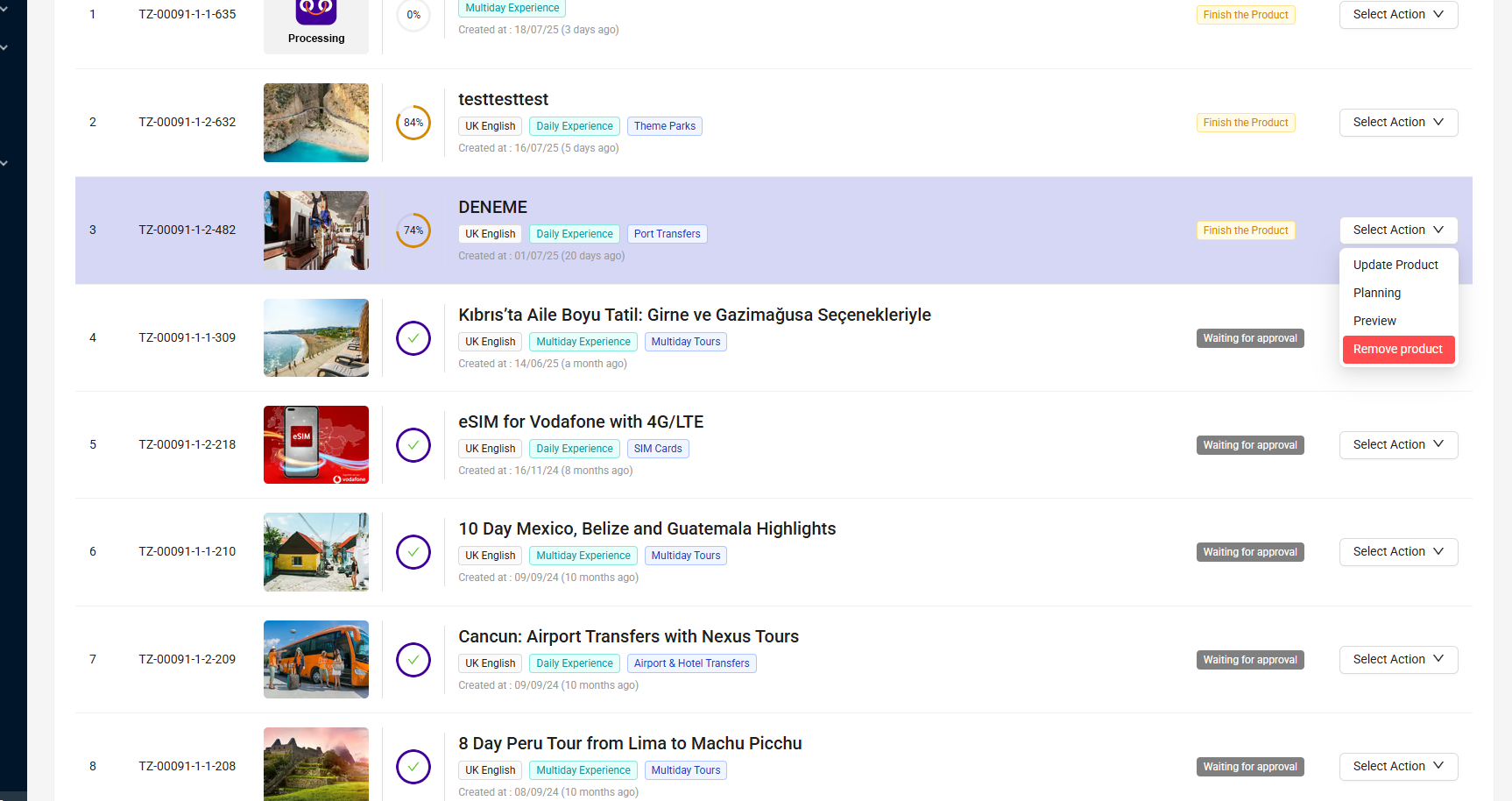
Go to Products > Experiences > List > Select Action > Update product: planning/ Remove product
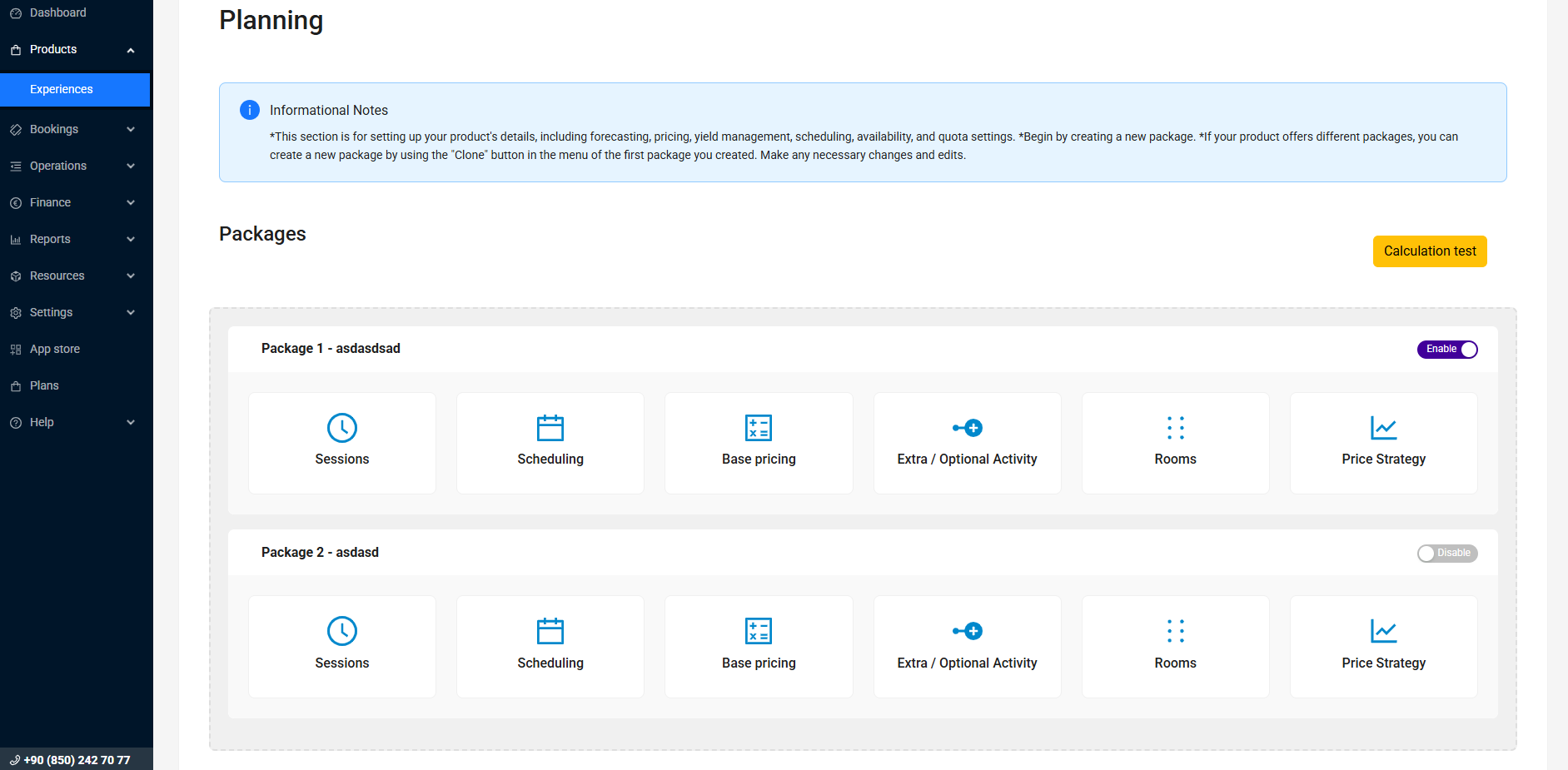
Or navigate to Products > Experiences > Planning, and use the Enable / Disable toggle to manage product visibility.
Deactivate a Product (Disable)
If your tour is currently active on the platform but you want to temporarily pause its visibility without deleting or archiving it, you can deactivate it.
How to deactivate a product:
Go to Products > Experiences > Planning
Find the related product package
Use the toggle button from Enable to Disable
What happens when you deactivate (disable) a product:
The tour is hidden from the Tourzone marketplace
It stays in your panel and all content is preserved
You can reactivate it anytime by switching the status back to Enable
Bookings and data remain unaffected
Use this option for seasonal products, paused operations, or temporarily unavailable services.
Archive a Product
Archiving a product is useful when you want to remove it from public view but keep all historical data for future use or reporting.
To archive a product:
Go to Products > Experiences
Locate the product you want to archive
Click Select Action
Choose planning product: update
When you archive:
The product disappears from the platform
It remains stored in your supplier panel
All product data, booking history, images, and pricing are preserved
You can restore the product at any time
Best for outdated, paused, or temporarily removed products.
Delete a Product
Deleting a product is a permanent action. Use it only when you're 100% certain the product will never be used again.
To delete a product:
The product must not have any associated bookings (past or future)
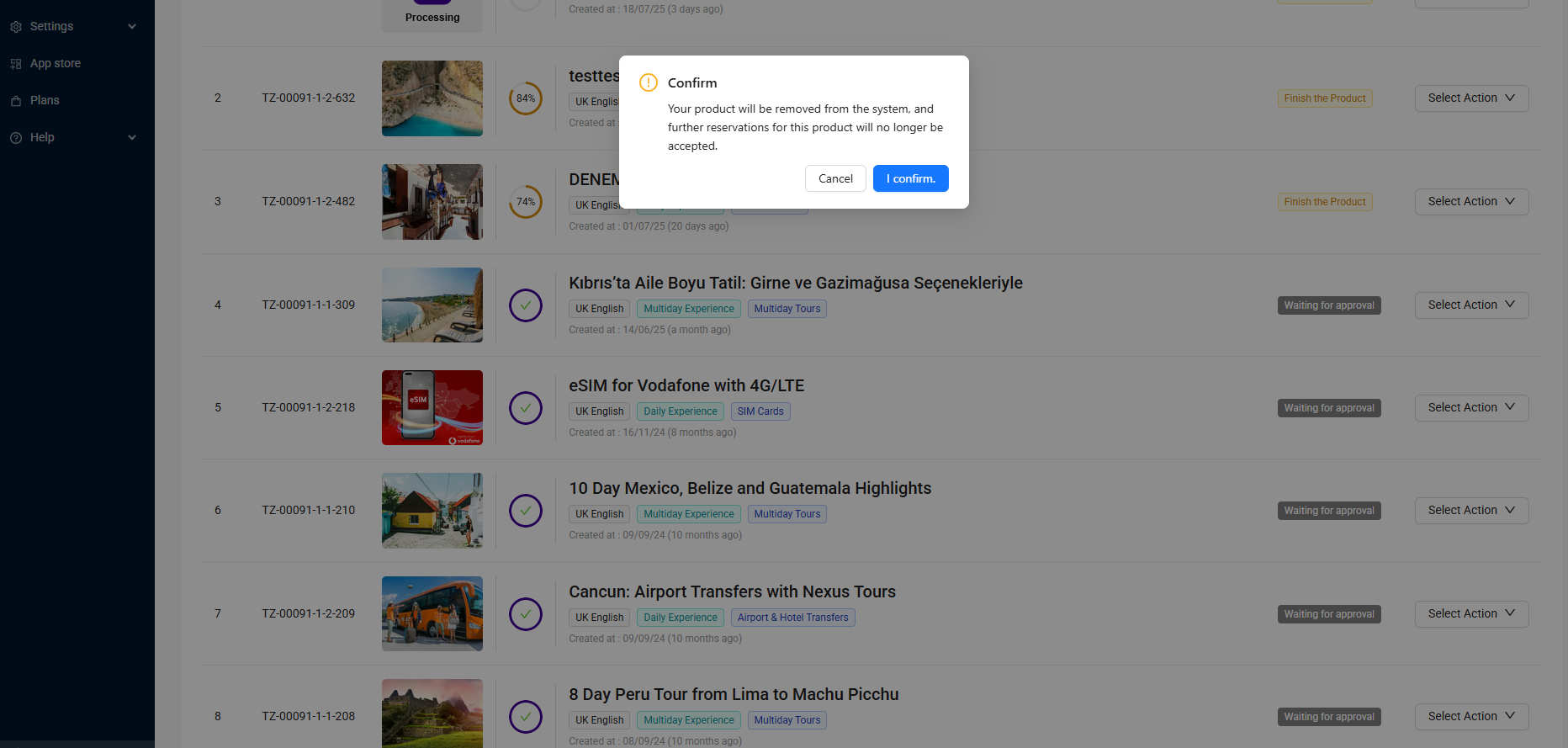
Click Select Action > Remove product > I confirm
Important Notes:
Deletion is irreversible
All product data will be permanently erased
The product will disappear from both your panel and the platform
You cannot restore a deleted product
Comparison Table
Best Practice Recommendation
If you are not ready to delete a product, it’s safer to either disable or archive it. This allows you to keep all your data and restore it easily when needed.
Was this article helpful?
That’s Great!
Thank you for your feedback
Sorry! We couldn't be helpful
Thank you for your feedback
Feedback sent
We appreciate your effort and will try to fix the article