Steps to add a new user:
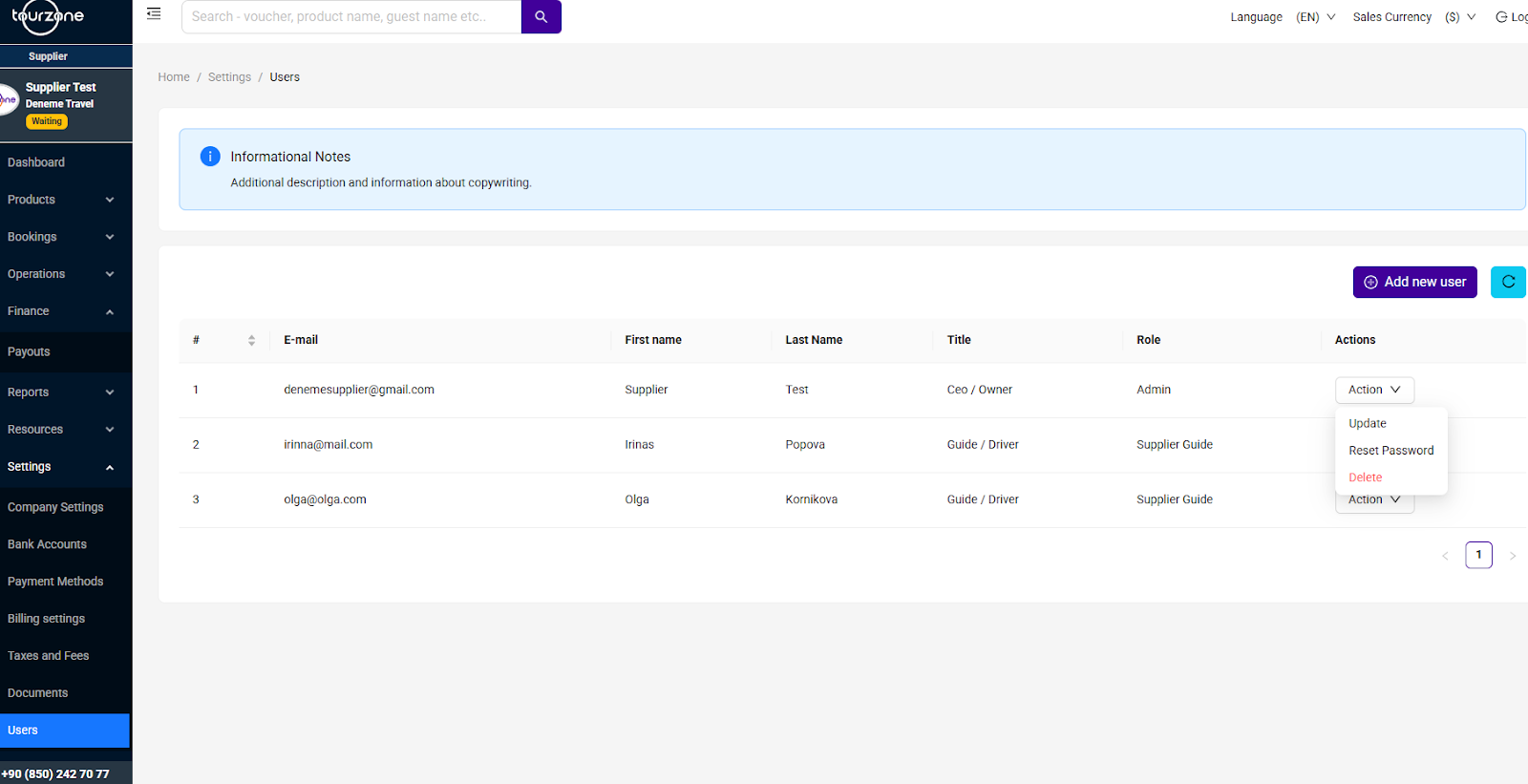
Go to Settings > Users
Click the purple ➕ Add new user button in the top-right corner.
In the pop-up window, fill in the required fields:
Email Address
First Name
Last Name
Title (e.g., Guide / Driver, Office Staff)
Role
Choose from available role types:Admin – Full access to all platform features
Supplier Guide – Limited to tour-related features
(Additional roles may be available depending on your permissions)
Click Save to send the invitation. The user will receive an email to set their password and log in.
Managing Existing Users:
In the user list, each row includes:
Email
First & Last Name
Title
Role
Action menu
Click Action to:
Update user details
Reset Password
Delete user account
Important Notes:
Only Admin users can add or delete team members.
Each user must have a unique email address.
Deleted users lose all access and cannot log in unless re-added.
Pro Tip:
Use roles wisely to keep your operations secure. Give Admin access only to trusted staff, and assign limited roles to guides or operational personnel.
Was this article helpful?
That’s Great!
Thank you for your feedback
Sorry! We couldn't be helpful
Thank you for your feedback
Feedback sent
We appreciate your effort and will try to fix the article