What is the Booking List?
The Booking List panel is your main dashboard to view, filter, and manage all reservations made for your products. You can analyze transaction details, track reservation stages, and adjust display settings to match your operational needs.
How to Access
Go to Bookings > Booking List in the left sidebar.
Filter Your View
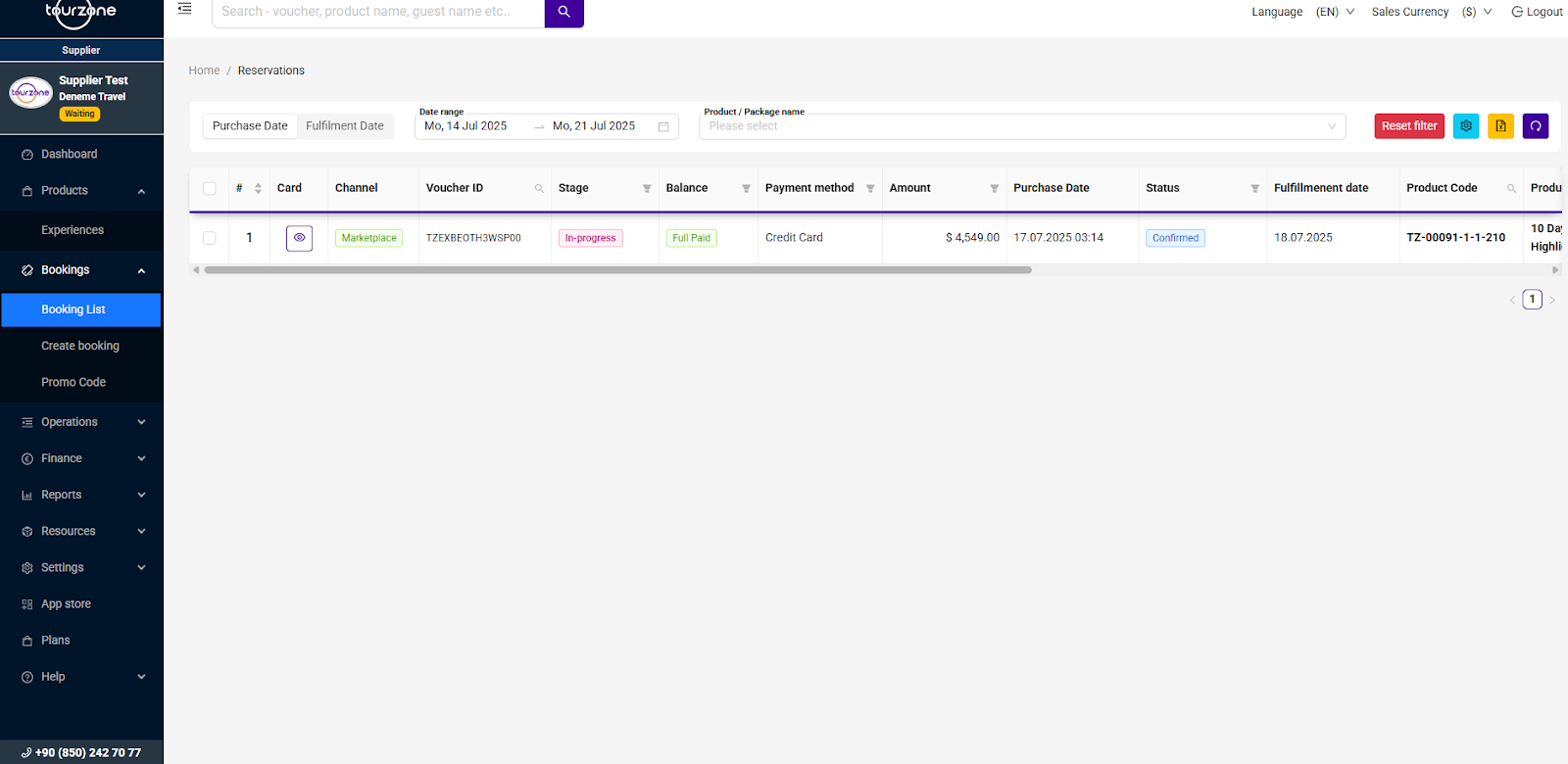
You can narrow your search using the filter bar at the top of the page:
Purchase Date – filter by the date the booking was made
Fulfillment Date – filter by the date of the tour or service
Date Range – select a specific date interval
Product/Package Name – find bookings related to a specific product
Tip: Click Reset Filter to return to the full booking view.
What You Can See in the Table
Each row represents one booking and contains the following columns:
Customize Your Table View
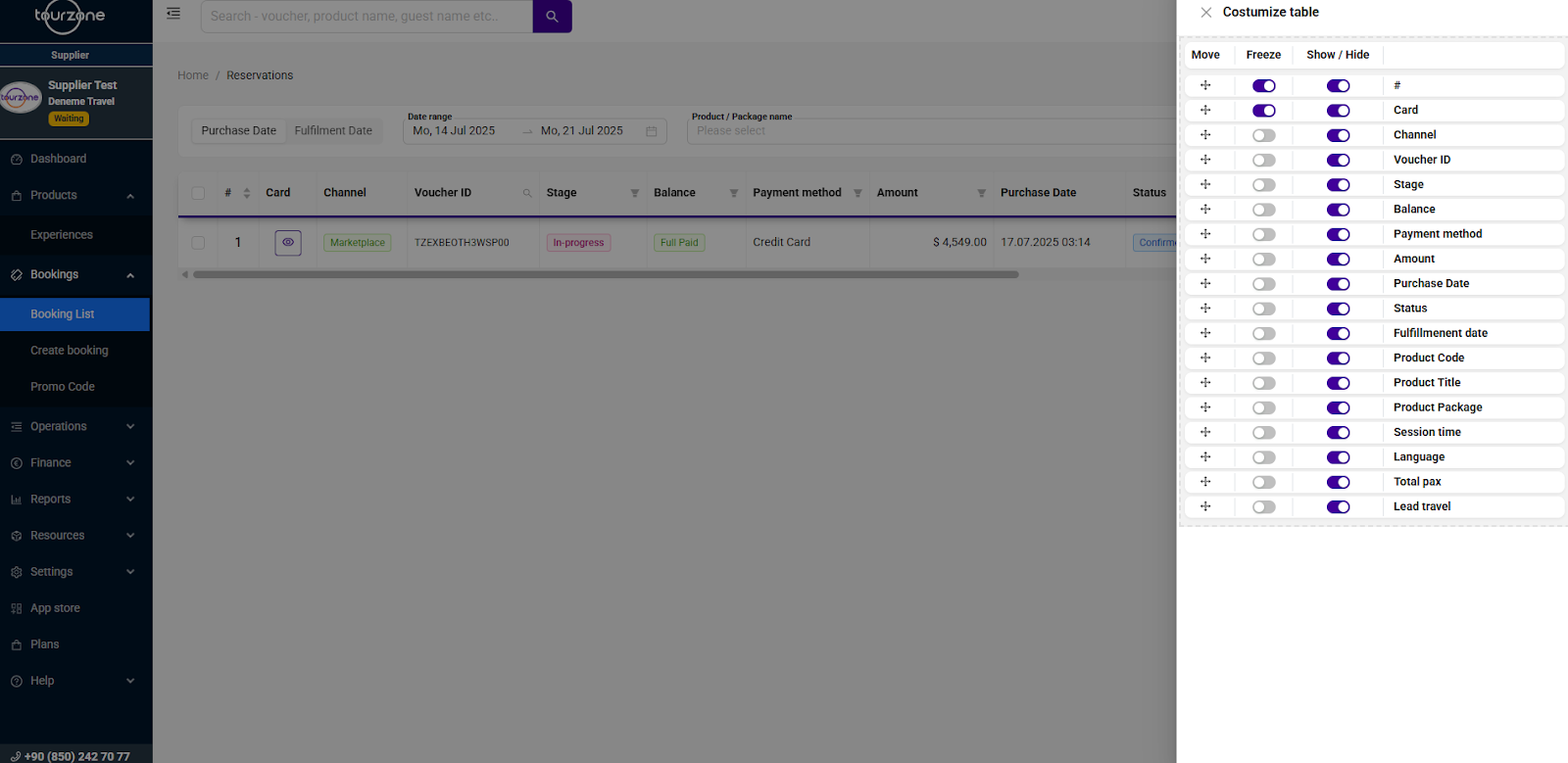
Click on the ⚙️ gear icon at the top-right corner of the table to open the Customize Table panel.
Here you can:
Show / Hide Columns – toggle data visibility
Freeze Columns – lock specific columns in place while scrolling
Reorder – drag and drop to rearrange column order
Expand and View More Details
Click the voucher icon in the Card column to expand a booking and see all associated data such as:
Guest information
Itinerary details
Notes or custom fields
Voucher preview
Use Cases
Check if a booking is fully paid before the tour date
Filter bookings for a specific guide or tour
Track upcoming vs. completed experiences
Quickly identify cancelled or pending reservations
Export data for financial reporting (CSV/Excel options available)
Tips
Use the Stage filter to manage operational readiness
Use Product Code for matching to product reports
Always verify the Fulfillment Date to avoid overbooking
Was this article helpful?
That’s Great!
Thank you for your feedback
Sorry! We couldn't be helpful
Thank you for your feedback
Feedback sent
We appreciate your effort and will try to fix the article