Supplier Panel > Bookings > Create Booking
This article explains how to manually create a booking from the supplier panel — ideal for in-house reservations, phone sales, or adjustments. This tool allows suppliers to enter guest data and reserve spots directly without waiting for online purchases.
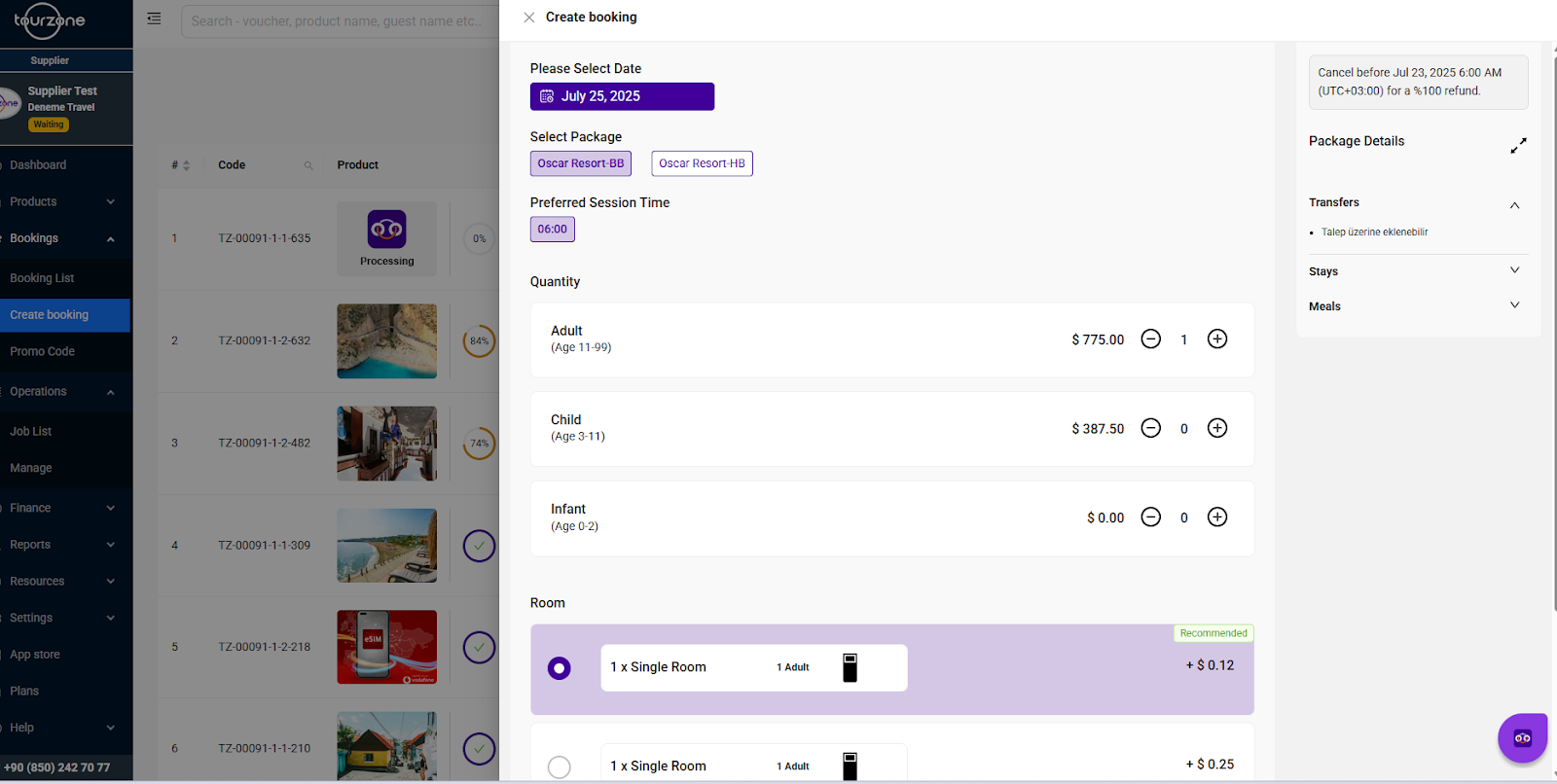
Step-by-Step Guide
1. Select the Date
At the top of the booking screen, choose the desired tour date using the calendar selector.
Date format: Day – Month – Year (e.g., July 25, 2025)
Refund policy appears on the right panel:
"Cancel before Jul 23, 2025, 06:00 AM for a 100% refund."
2. Select the Package
Choose one of the available package types:
Oscar Resort-BB (Bed & Breakfast)
Oscar Resort-HB (Half Board)
Packages may affect pricing, available services, and refund conditions.
3. Choose Preferred Session Time
If the experience offers multiple sessions per day, select a session (e.g., 06:00). This helps operations allocate capacity and guides.
4. Define Quantity of Guests
You can specify the number of travelers in each age category:
Use the + and – buttons to adjust quantity.
5. Select Accommodation (if applicable)
Based on the selected package, you’ll be offered room options:
Example:
1 x Single Room – Recommended — additional charge + $0.12
Multiple rooms can be selected based on group size. Each option indicates:
Room type (e.g., single, double)
Guest capacity
Price supplement
6. Review Package Details
On the right-hand side panel, expand the tabs:
Transfers – e.g., “May be added on request” (by request)
Stays – Included nights and room options
Meals – What meals are provided (e.g., breakfast only, half board)
This helps align with guest expectations and pricing.
7. Confirmation & Finalization
Once all fields are completed:
Click "Next" or "Confirm" (button not visible in screenshot)
Review the booking summary
Submit to finalize the reservation
A new voucher code will be generated and the booking will appear in:
Bookings > Booking List
Operations > Job List
Tips
Manual bookings are ideal for last-minute requests or offline sales.
Always double-check age categories and pricing.
Use filters in the Booking List later to track and manage all reservations.
If you’ve added transfers or special requests, communicate with the operations team to ensure smooth fulfillment.
Was this article helpful?
That’s Great!
Thank you for your feedback
Sorry! We couldn't be helpful
Thank you for your feedback
Feedback sent
We appreciate your effort and will try to fix the article