How to Apply Promo Codes
Promo codes allow you to offer discounts for selected products on specific dates, days of the week, or within defined usage limits. On Tourzone, you can easily create and manage these codes via the Promo Code section.
Where to Find Promo Codes
Navigate to:
Bookings > Promo Code from the left-hand menu.
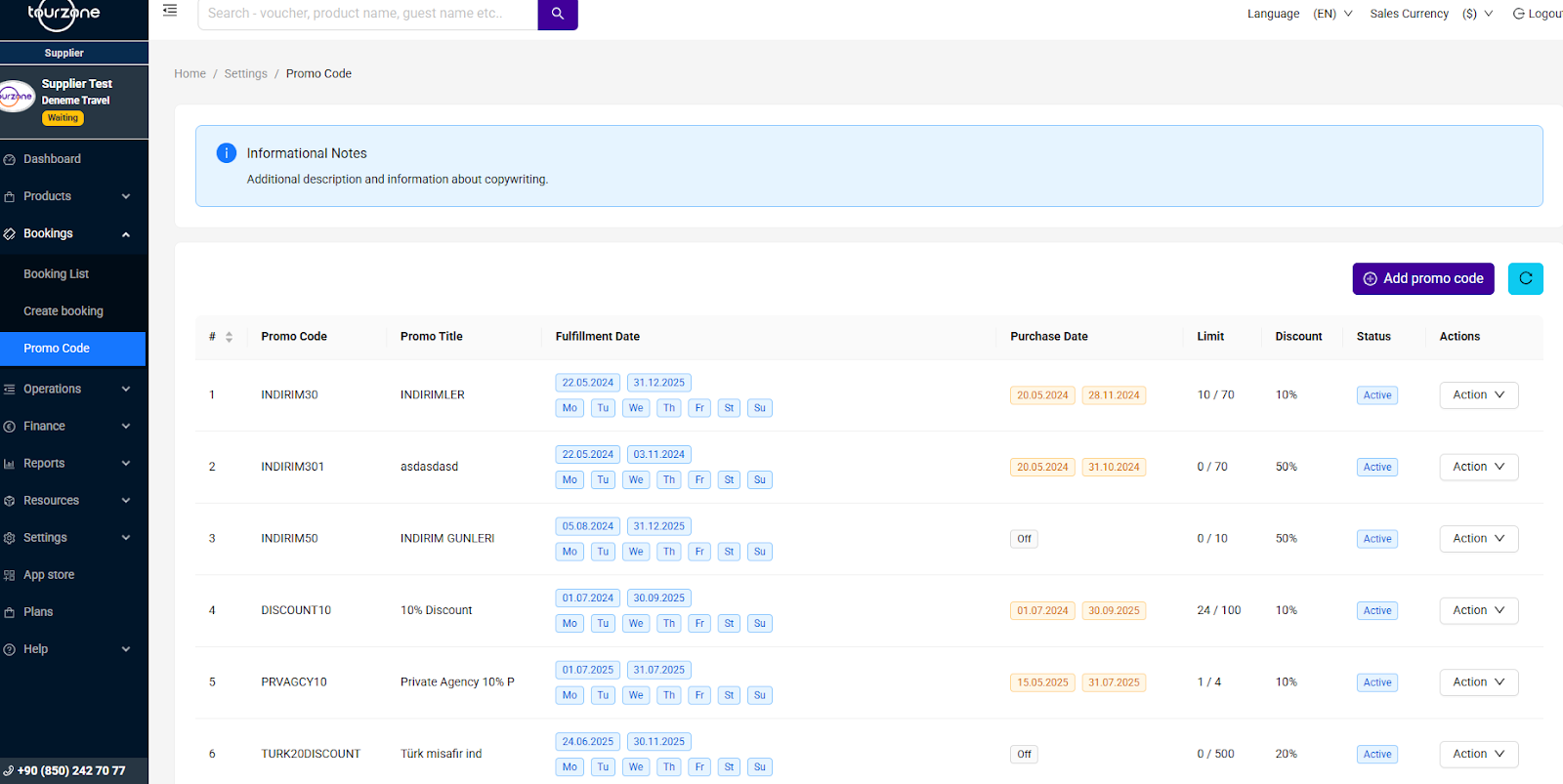
Understanding the Promo Code List Panel
In this panel, you’ll see a list of all created promo codes along with key details:
How to Add a New Promo Code
Click Add Promo Code (purple button at the top right).
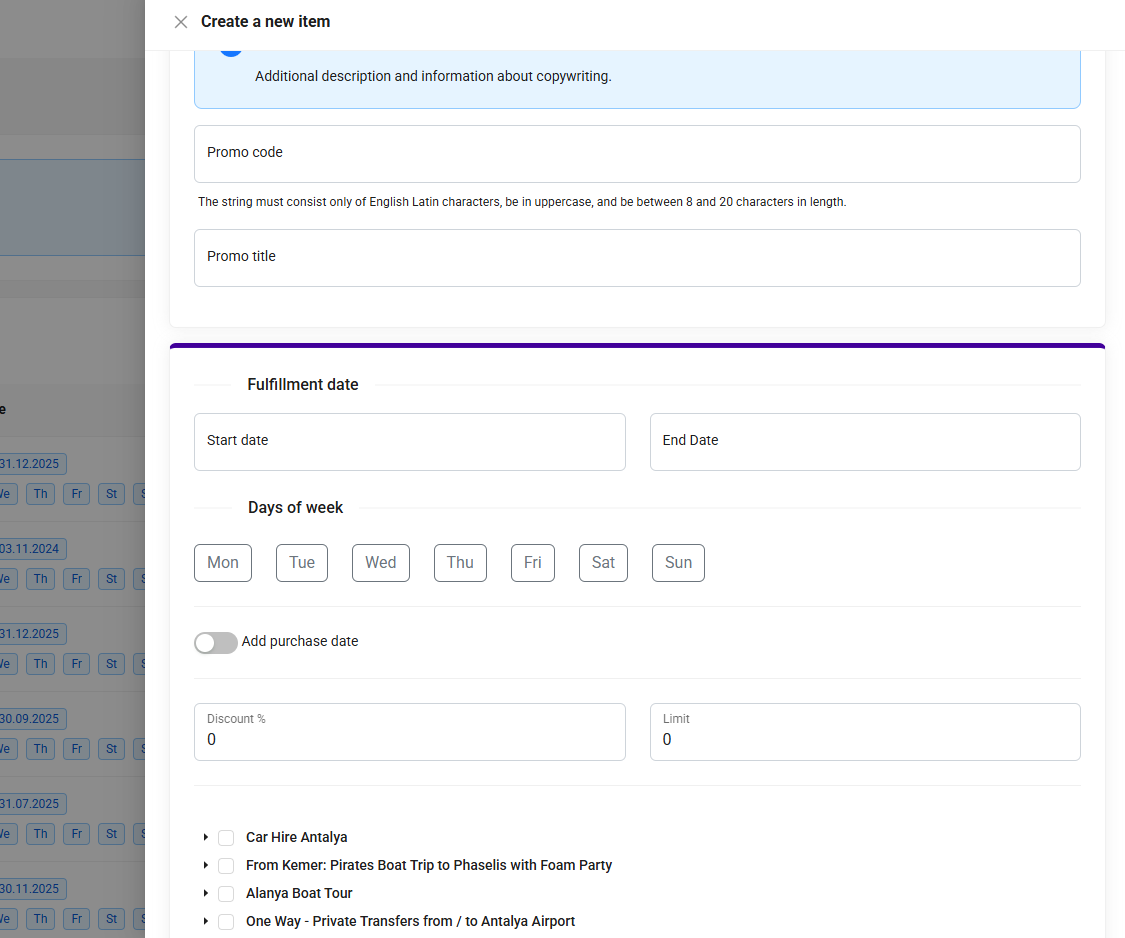
You will see a form with the following fields:
1. Promo Code
Enter a unique code using only uppercase English letters (between 8–20 characters).
Example: SUMMER2025
2. Promo Title
A descriptive name to help you identify the promotion internally.
Example: “Summer 2025 Early Bird”
3. Fulfillment Date
Select the date range when this code can be used for attending the tour/service.
You can also specify the days of the week (e.g., Mon–Fri only).
Start Date & End Date
Days: Mo, Tu, We, Th, Fr, Sa, Su
4. Add Purchase Date (optional)
Enable this if you want to limit when the promo code can be purchased.
Set start/end dates for when customers must make their bookings.
5. Discount %
Set the discount amount (e.g., 10%, 50%).
6. Limit
Define the total number of times this promo can be used. Example: 100
Once the limit is reached, the promo becomes inactive automatically.
7. Select Products
Choose one or more products that this code will apply to.
Just tick the box next to the product(s).
Managing Existing Promo Codes
Use the Actions dropdown on any promo row to:
Edit the code
Deactivate it
Delete it
Tip: Always double-check the limit, dates, and product selection before saving.
Best Practices
Use unique codes for different campaigns.
Make sure to set both Fulfillment and Purchase dates clearly to avoid confusion.
Limit the number of uses if the offer is time-limited or budget-based.
Avoid overlapping promo dates across products unless intentional.
Was this article helpful?
That’s Great!
Thank you for your feedback
Sorry! We couldn't be helpful
Thank you for your feedback
Feedback sent
We appreciate your effort and will try to fix the article