Managing Your Job List
Tourzone Supplier Panel > Operations > Job List
The Job List panel is your operational command center — allowing you to oversee upcoming reservations, organize logistics, assign resources, and ensure smooth tour execution. This guide explains how to use the Job List efficiently, with tips to help you track and fulfill guest experiences with precision.
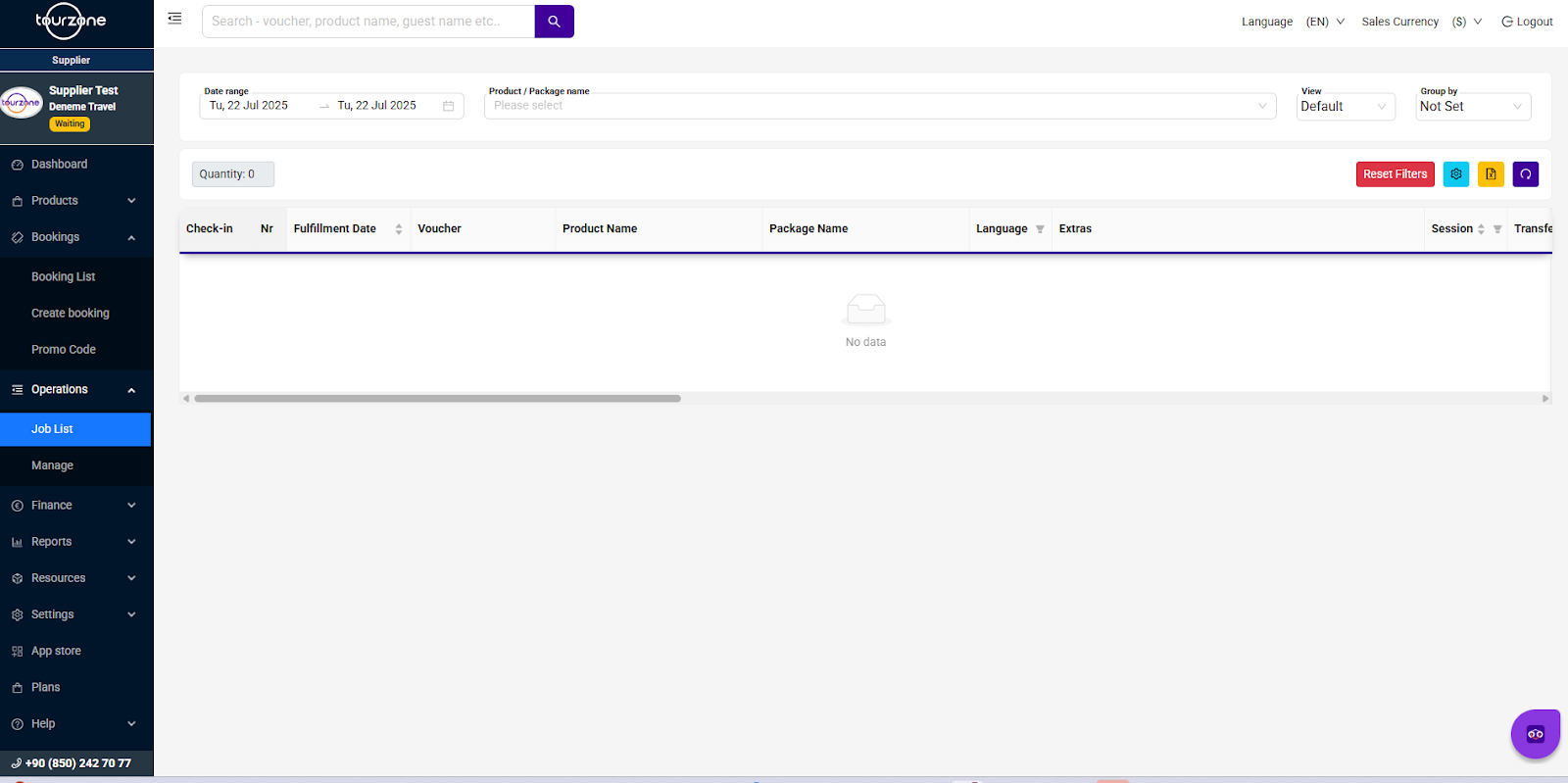
Accessing the Job List Panel
To view or manage your job list, go to the left-hand menu:
Operations > Job List
Filtering Bookings
Use the filter bar at the top of the page to narrow your results:
Date Range: Select one or more dates to see bookings scheduled for that period.
Product / Package Name: Filter by specific experiences or packages.
View: Choose different layout styles (e.g., default, calendar).
Group By: Organize jobs by tour, pickup time, guide, or transfer.
You can also reset filters at any time using the Reset Filters button.
Job List Columns Overview
Your booking table shows key operational data across many columns. You can customize which columns to show or hide by clicking the Settings icon (gear) in the top-right.
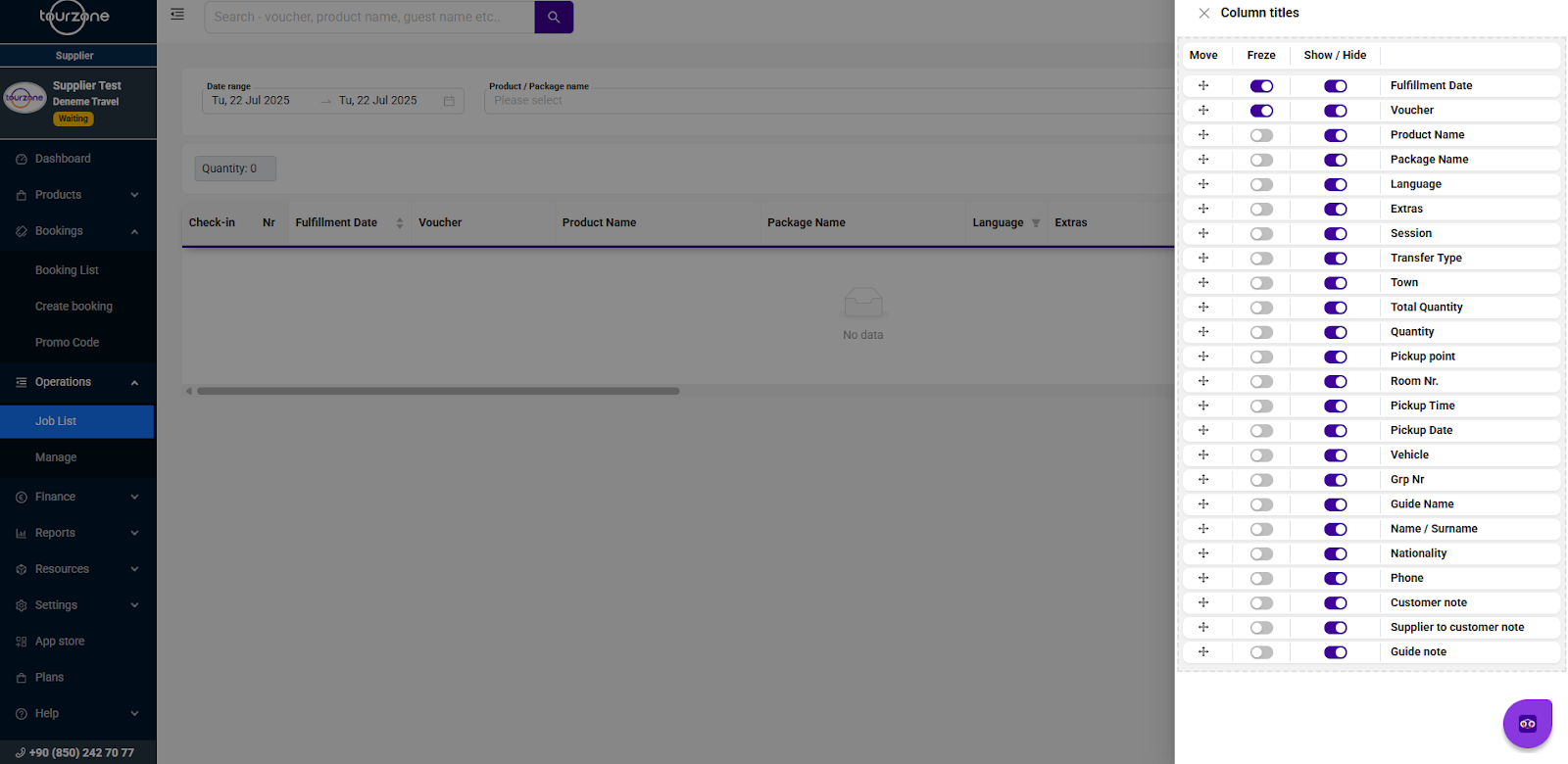
Common Columns:
You can freeze columns or drag to reorder them. This is especially useful for live operations monitoring.
Statuses and Actions
Each job line may include a status (e.g., Processing, Confirmed) or check-in toggle. Operations teams can use this to:
Track which guests have checked in
Confirm fulfillment
Trigger team alerts or logistics steps
Best Practices for Using Job List
Always filter by date range: This ensures you’re only viewing relevant bookings.
Use groupings smartly: Group by session time or vehicle to plan resources better.
Check notes: Supplier-to-customer notes or guide notes often include critical instructions.
Mark check-ins in real-time: Helps manage guest flow during busy tour days.
Customizing Columns
Click the gear icon at the top right to manage which columns are shown in the list. For example:
Hide less relevant fields like “Room Nr” if your tour doesn’t include accommodation.
Show “Vehicle” and “Guide Name” if you’re managing large group logistics.
This makes the interface cleaner and more aligned with your daily work.
Tip
Use this panel during daily morning briefings with your operations team. Export your filtered Job List to share assignments and responsibilities clearly.
Was this article helpful?
That’s Great!
Thank you for your feedback
Sorry! We couldn't be helpful
Thank you for your feedback
Feedback sent
We appreciate your effort and will try to fix the article